Showing posts with label howto. Show all posts

Thursday, October 8, 2009

How To: Jars in a jar using Eclipse

I wrote a utility using GeoTools which uses a couple classes to transform geometry from one projection to another.  Projecting geometry uses EPSG definitions stored in the gt-epsg-hsql-2.5.7.jar which does not get bundled into an executable jar; for my utility to work as executable jar I needed to include the gt-epsg-hsql-2.5.7.jar.  


There are several approaches to building a jar that contains jars.  They typically involve using ant to bundle the files into the jar and a special class loader.  Writing the build.xml file and the class loader can be tedious.  Fortunately, the Fat Jar eclipse plugin simplifies the process and includes the One-JAR class loader.  


Installing the plugin can be done using Software Updates:


Click on Add Site

Enter the web site URL

Select the Fat Jar plugin and click on Install


Click Finish


Restart eclipse to finish the installation.


To build your project with external jars included, click on Export


Click on Other and select the Fat Jar Exporter

Select the project

Enter the name of the output jar, select the main class, and check off the One-JAR option to use the One-JAR class loader.

Clicking on next opens a dialog to select the jars to include, the default selects all external jars.  Unlike a typical executable jar, all the imported classes are not included so take the default and click on finish.  The Fat Jar plugin will build the jar with the external jars included, note that the final jar can become quite large.

Friday, May 15, 2009

HowTo: OSX 10.5.7 update on a Dell Mini 9

As my profile states, I make lots of mistakes.  I woke up this morning  to the OS X 10.5.7 update bouncing perkily on my dock.  So sure, why not? WHY NOT? BECAUSE YOU ARE PLAYING WITH FIRE!!
So here's  a HowTo for updating your Dell Mini 9 to OS X 10.5.7:
1. Get the stuff you need on your disk.  The update will bork/break your screen so you have to boot to safe mode.  Another added annoyance is that the USB didn't work for me after the update, so having these files on your drive or on a network share is important.  Here's the stuff you need.
  • If you are on 10.5.5 or lower, use the combo installer.  If you are on 10.5.6, you can use the standalone OS X 10.5.7 updater (don't use the system updater, it crashed on me).
  • The DellEFI1.1 file
  • The AboutThisMac.pkg to fix the About This Mac screen.  This isn't necessary but it makes the install look all nice and tidy
2. The instructions for applying the update came from conq at the mydellmini forum.  I'm adding a few extra tips that people (including myself) were stumbling on.
1. Download the installer, don't use Software Update. Install 10.5.7. 2. Let it reboot.  3. At the boot screen press enter (or any key) to get the  boot prompt.  It should look like this: boot:     type -x and hit enter boot: -x     OS X will enter Safe Mode.  4. When in Safe Mode run DellEFI. 5. Reinstall the Mini 9 Extensions and remove custom dsdt.aml file.  These are the default options  for the DellEFI, take the default. 6. Reboot.  7. At the boot screen use the -x to enter Safe Mode again 8. After in Safe Mode run DellEFI.  Install custom dsdt.aml file, which is the default option, take the default. 9. Reboot
One minor annoyance was that my Bluetooth pairings went awry and I had to pair my devices again. Running monolingual again will help remove some of the bloat of the update as well as cleaning up any programs that you might have installed since the last time monolingual was last run.  I had installed Xcode and monolingual removed ~750mb worth of stuff.
That's it.  Good luck!

Monday, April 27, 2009

External Displays on the OSX Dell Mini 9

I'm on the second week of  using my OSX Mini 9 as my main work computer (work being email, writing, presentations, IRC, browsing, and some light application dev work) and so far the experience has been great, especially while traveling in NYC last week.  I'm prepping PowerPoints for presentations this week, so I tried using an external monitor to see them on a larger screen.  Using an external monitor or projector turns out to be a little more complicated than on a typical Mac; although my success connecting the MacBook Pro's DVI to SVGA dongle to projectors has been less than stellar in the past.
I plugged my external monitor into the SVGA port and the screen immediately turned to gobbledygook.  It turns out that mirroring is turned on automatically by default in the Display Preferences.  Apparently the kext loaded by DellEFI1.1 is not display mirroring friendly. Fortunately, this is a solved problem and you can download  the mirrorTool utility to turn off mirroring.  The tool comes as an app or as a command line utility.  First unplug the external monitor to restore the Mini's screen.  Using the command line tool was simple:
./mirror -off
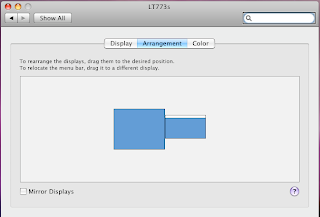
Once mirroring is off, you should see part of the desktop on the external monitor and the menu bar and dock in your mini screen.  From my viewpoint this is backward and I want both the menu bar and dock on the larger screen.  When I tried viewing a slideshow using NeoOffice Impress, the Mini screen displayed the slides and the external monitor displayed the presenter preview;  obviously this wasn't working out as expected.  To switch these around, open System Preferences > Displays  find the window with the external monitor and click on Arrangements.
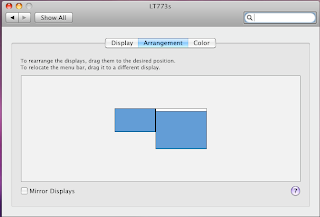
You can drag the menu bar to the external monitor and I dragged the Mini screen to the right of the external monitor.
The menu bar and dock are now where I expect them to be.  Moving the menu bar is key to getting Impress to display a slideshow correctly.  Your preferences are saved, so when you unplug from the external monitor, the Mini reverts to its previous state.
Finally, adding a USB keyboard and a bluetooth mouse to the equation finishes things up quite nicely. 

Thursday, April 16, 2009

HowTo: Install OSX on a Dell Mini 9 with an external DVD

Yes, I know that there a gazillion guides on how to install OS X on a Dell Inspiron Mini 9, but for some reason they were all just a little bit off or outdated or just really complicated and hard to follow.  This guide was the most comprehensive, but not the easiest to follow.
This guide is for installing OS X 10.5.6 on a Dell Inspiron 9 with an external DVD drive, no USB drives needed.
Things you need:
  • Dell Mini 9 with at least 16GB SSD drive
  • External DVD with USB interface 
  • OS X 10.5.6 Retail version
  • DellMiniBoot v8.02b1 iso
Installation:
  1. Download the the DellMiniBoot iso and burn it to a bootable CD.
  2. Connect the external DVD to the Dell Mini and turn on the Mini.  Press "0" to enable the boot menu, choose CD/DVD to boot to the DVD drive.
  3. The system will load a linux kernel and return with a prompt that says "boot:"   At this point, remove the boot disk and put the OS X disk in the DVD drive.
  4. Press ESC to bring up the drive options, type in "9f" then enter to select the dvd drive.  At this point, my install returned an "ebios read error".  This means that drive is having problems reading the disk.  The solution is to turn of the external drive and turn it on again while the Mini is still running.  Plugging and unplugging the USB cable is also supposed to work.  There will be a couple more "ebios read errors" then the drive should catch and start to load the OS X installer.
  5. The installer will ask to partition and reformat your SSD drive, it should do this automatically.  However, in my case I installed a third party 32gb Runcore SSD* so I had to  manually partition the disk using the disk utility that comes with the installer.  I partitioned the drive as a Mac OS Extended (journaled), pressed "Options..." selected GUID and pressed "Apply".  I then returned to the install, which took about 45 minutes.
  6. When OS X is installed and running, replace the OS X disk with the DellMiniBoot cd.  Open the CD in Finder and open the DellMini9Utils directory.  Click on the DellEFI app, this will install the boot loader and other extensions such as the WiFi driver.
  7. In the same directory, click on the AboutThisMac.pkg package to update the system information.
  8. Restart the Mini 9, and it should boot to OS X with wifi, sound, bluetooth and the other goodies enabled.
  9. Other things I did was upgrade the system memory  from 512mb to 1gb, added a 16gb SDHC for extra storage, added a bluetooth dongle I had lying around.
  10. Enjoy typing on a ridiculously small keyboard!
* I installed a Runcore SSD because it currently has the fastest read/write speeds for a MLC (Multi-Level Cell)  SSD card.  My brother-in-law installed a Crucial SSD and the system was unusably slow.  I ordered my SSD from MyDigitalDiscount and it took over a month for them to ship the SSD because demand is far outstripping supply.  That being said, it was definitely worth the wait because the OS X boot time about 15-20 seconds and everything runs quite quickly.
So totaling up the costs (including shipping and taxes):
$170.00  Dell Inspiron Mini 9 (refurbished)   $124.00  Runcore 32gb SSD                                $137.00  OS X 10.5.6 Retail                                 $ 30.00   16gb SDHC                                             
----------
$461.00
A bit more than the often touted $300 netbook, but I'm willing to pay the extra premium for an OS that enhances my productivity.

Wednesday, April 15, 2009

Maps for Advocacy

From the WhereIdeas Wiki:
Tactical Technology Collective has put together a great book Maps for Advocacy: An Introduction to Geographical Mapping Techniques (http://www.tacticaltech.org/mapsforadvocacy). Use of maps in the political and activism space is growing and very successful. —GregElin, Sunlight Foundation.
Summary blurb from the Tactical Technology Collective website:
"The booklet is an effective guide to using maps in advocacy. The mapping process for advocacy is explained vividly through case studies, descriptions of procedures and methods, a review of data sources as well as a glossary of mapping terminology. Scattered through the booklet are links to websites which afford a glance at a few prolific mapping efforts. "
Indeed, in 44 pages the booklet provides coverage of the majority of the web based mapping technologies available today that don't require purchasing a license.  One of the best parts of the book is the roadmap to the technologies based upon what a user wants to do. 
If you provide a service or software, where do you think your technology fits?

Wednesday, March 4, 2009

Howto: Open Street Map in Oracle

Open Street Map is crowd sourced street map of the world.  As you would expect, it's a lot of data and the xml data file for the world is around 100gb uncompressed.   There are two ways of getting OSM data into Oracle, you can down load the shape files from CloudMade or GeoFabrik or download the planet_osm file, load it into PostgreSQL/PostGIS and then load it into Oracle.
Loading OSM shape files into Oracle
Loading shape files into Oracle is pretty easy and there are a lot of tools (both freeware and commercial) for loading data such as Oracle's Map Builder, Safe Software's FME, GDAL's ogr2ogr, and even a java based shp2sdo utility from Oracle.  The downside of using shape files is that there are a lot of them.  This requires plenty of of disk space for unzipping files as well as shell scripting to download and load the data into Oracle if you are averse to clicking links or pushing buttons repeatedly.  The other problem is that the field names maybe different from the planet_latest.osm file, which means some examples for configuring services may need additional tweaking. 
Loading OSM into PostgresSQL
The other way is to load the osm data into PostgreSQL/PostGIS using osm2pgsql.  There main advantage is that you get the raw data and your data looks like everyone else's so you can reuse their work without much tweaking.  You also avoid all the link clicking, scripting,  unzipping and loading multiple shapefiles.
There are Windows and debian based linux binaries for osm2pgsql.  I use centos, so I had to build osm2pgsql using howtos from here and here.  I had a couple of problems loading the data and it seemed that the system memory was overwhelmed by the amount of data.  Using the slim option (store temporary data in the database) fixed this problem.   Load the data using osm2pgsql: 
./osm2pgsql -c -s -C -H ang -P 5432 -d osm -E EPSG:4326 -U postgres -W ../planet-latest.osm
Loading the planet_latest.osm file can take a couple of days even on a dual processor server.  It is an awful lot of XML to parse and insert into a database.
Ogr2ogr: vector data convertor
The next step is to move the data from Postgres to Oracle using the gdal utility ogr2ogr.   
There are Windows binaries for ogr2ogr but the minimalist windows executables do not include the OCI driver for Oracle.  For Windows, your best bet is to download the OSGeo4W installer and add the OCI driver to the install list.  The OS X binary from Kyng Chaos lacks OCI support, so you will have to build gdal on OS X.  On linux you will need to build gdal.  To build gdal with OCI, you will need  GEOS, PROJ4, and the Oracle Client installed.  Make sure you have ORACLE_HOME set so that make can get to the Oracle libs.  Remember to add the OCI option when configuring:
% ./configure --with-oci % make % sudo make install
Loading OSM from PostgreSQL to Oracle using ogr2ogr
Using ogr2ogr is straight forward, however there a few things that you will need to do ahead of time.  Ogr2ogr cannot create a new database so you have to set one up before moving the data from PostgreSQL to Oracle. 
1. Create a table space to hold the data.  Make sure autoextend is on to accommodate all the data.
sqlplus system/password
   sqlplus> CREATE TABLESPACE PLANET_OSM_TS \  LOGGING \  DATAFILE 'C:\DATA\PLANET_OSM.DBF' \  SIZE 5G \  AUTOEXTEND ON \   EXTENT MANAGEMENT LOCAL;
2. create a user and assign them to the new tablespace
sqlplus> CREATE USER OSM IDENTIFIED BY OSM DEFAULT TABLESPACE PLANET_OSM_TS;
3. grant the user privileges
sqlplus> GRANT CONNECT,RESOURCE TO OSM;
4. make sure that the PostgreSQL machine can see the Oracle machine.  If you have the Oracle client installed,  add the Oracle SID to the C:\Oracle\product\10.1.0\Client_1\network\ADMIN\tnsnames.ora file:
osm_planet = (DESCRIPTION = (ADDRESS_LIST = (ADDRESS = (PROTOCOL = TCP)(HOST = oracleserver)(PORT = 1521)) ) (CONNECT_DATA = (SERVICE_NAME = osm_planet) ) )
Ogr2ogr makes use of the SID to connect to Oracle.  You can test to see if the connection is working with tnsping:
tnsping osm_planet
Once the database is set up, moving OSM from PostgreSQL to Oracle is straight forward.   I did hit one snag.  Before translating the data, make sure that the applications using this data are not tied to a specific Oracle SRID.  For example, the OSM data was in WGS84 (EPSG:4326) and an application I used tied WGS84 to Oracle SRID 8307.  Ogr2ogr uses the first exact match of WKT (Well Known Text) as the target SRID; this happened to be SRID 8192.  The WKT for 8192 and 8307 are exactly the same, but the application was hardwired to use SRID 8307 , so my sql requests failed because the SRIDs did not match.  To avoid problems like this, you can use the -lco (layer creation option) to set the SRID or any other parameters.  
ogr2ogr -f OCI OCI:osm/osm PG:"host=localhost user=postgres password=postgres dbname=osm port=5432" -lco OVERWRITE=yes -lco SRID=8307 -nln planet_osm_line planet_osm_line
Rinse, lather and repeat for planet_osm_roads, planet_osm_point, and planet_osm_polygon layers, if so desired.  Loading the data will take most of the day, particularly planet_osm_line table which contains around 22 million records.